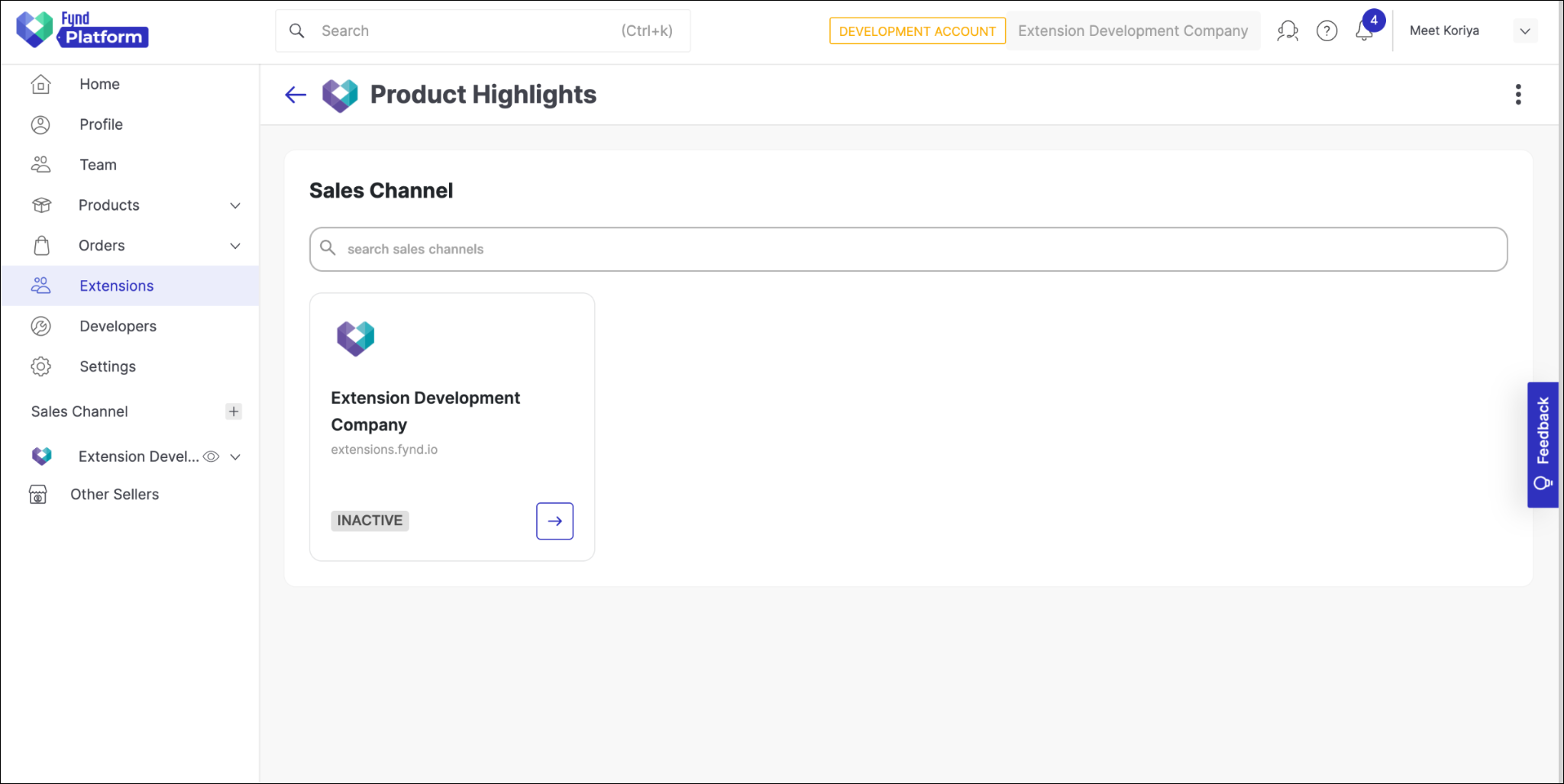
Home page
This section is part of a the tutorial series to build a Product Highlights example Extension.
What you’ll learn
In this section, you'll use React, MongoDB, and Nitrozen components to build your Extension home page.
This change consists of three steps:
- Create schema for saving product and its highlights using mongodb.
- Make changes in the Extension backend.
- Add additional components to the Home page of the Extension Frontend.
Step 1: Create MongoDB config
The app needs a database to store the Product details so that merchants can view and edit the saved product highlights. For this we will require mongo connection.
-
Add the following dependency inside
./pom.xmlfile<dependency>
<groupId>org.springframework.boot</groupId>
<artifactId>spring-boot-starter-data-mongodb</artifactId>
<version>2.7.5</version>
</dependency> -
Create a new file
/com/fynd/example/java/db/MongoConfig.javaand add the following code:package com.fynd.example.java.db;
import com.fynd.example.java.properties.Config;
import org.springframework.beans.factory.annotation.Autowired;
import org.springframework.context.annotation.Bean;
import org.springframework.context.annotation.Configuration;
import org.springframework.data.mongodb.core.MongoTemplate;
import org.springframework.data.mongodb.core.SimpleMongoClientDatabaseFactory;
@Configuration
public class MongoConfig {
@Autowired
Config config;
@Bean
public MongoTemplate mongoTemplate() {
String mongodbUri = config.getMongodbUri();
return new MongoTemplate(new SimpleMongoClientDatabaseFactory(mongodbUri));
}
}
Step 2: Create MongoDB schema
The database collection includes the product highlights, as well as the basic details about the product such as name, product brand, product slug, and product item code.
-
Create new
/com/fynd/example/java/db/Product.javaclasspackage com.fynd.example.java.db;
import com.fasterxml.jackson.annotation.JsonProperty;
import com.fynd.example.java.helper.models.Price;
import lombok.*;
import java.util.List;
@Getter
@Setter
@AllArgsConstructor
@NoArgsConstructor
public class Product {
@JsonProperty("name")
private String name;
@JsonProperty("image")
private String image;
@JsonProperty("brand_name")
private String branchName;
@JsonProperty("category_slug")
private String categorySlug;
@JsonProperty("highlights")
private List<String> highlights;
@JsonProperty("price")
private Price price;
@JsonProperty("enablePriceDrop")
private Boolean enablePriceDrop;
} -
Also crate
/com/fynd/example/java/db/ProductHighlight.javaclasspackage com.fynd.example.java.db;
import lombok.*;
import com.fasterxml.jackson.annotation.JsonProperty;
import org.springframework.data.mongodb.core.mapping.Document;
@Document(collection = "product-highlights")
@Getter
@Setter
@NoArgsConstructor
@AllArgsConstructor
public class ProductHighlight {
@JsonProperty("company_id")
private String companyId;
@JsonProperty("application_id")
private String applicationId;
@JsonProperty("product_item_code")
private Integer productItemCode;
@JsonProperty("product_slug")
private String productSlug;
@JsonProperty("product")
private Product product;
@JsonProperty(value = "is_active", defaultValue = "false")
private Boolean isActive;
} -
Create new
/com/fynd/example/java/db/interfaces/ProductHighlightRepository.javafile and add the following code to the filepackage com.fynd.example.java.db.interfaces;
import com.fynd.example.java.db.ProductHighlight;
import org.springframework.data.mongodb.repository.MongoRepository;
import org.springframework.stereotype.Repository;
import java.util.List;
import java.util.Optional;
@Repository
public interface ProductHighlightRepository extends MongoRepository<ProductHighlight, String> {
List<ProductHighlight> findByCompanyIdAndIsActive(String companyId);
List<ProductHighlight> findByCompanyIdAndApplicationId(String companyId, String applicationId);
Optional<ProductHighlight> findOneByCompanyIdAndApplicationIdAndProductItemCode(String companyId, String applicationId, Integer productItemCode);
Optional<ProductHighlight> findOneByCompanyIdAndApplicationIdAndProductSlug(String companyId, String applicationId, String productSlug);
Optional<ProductHighlight> findOneByCompanyIdAndProductItemCode(String companyId, Integer ProductItemCode);
Optional<ProductHighlight> findOneByApplicationIdAndProductSlug(String applicationId, String productSlug);
void deleteOneByCompanyIdAndApplicationIdAndProductItemCode(String companyId, String applicationId, Integer productItemCode);
void deleteOneByCompanyIdAndApplicationIdAndProductSlug(String companyId, String applicationId, String productSlug);
long countByCompanyIdAndApplicationIdAndIsActive(String companyId, String applicationId, Boolean isActive);
}
Step 3: Update the backend API
-
Create a new file
/com/fynd/example/java/controller/ProductController.javaand add the following codepackage com.fynd.example.java.controller;
import com.fasterxml.jackson.databind.ObjectMapper;
import com.fynd.example.java.db.ProductHighlight;
import com.fynd.example.java.db.interfaces.ProductHighlightRepository;
import com.fynd.extension.controllers.BasePlatformController;
import com.fynd.extension.session.Session;
import com.sdk.platform.PlatformClient;
import com.sdk.platform.configuration.ConfigurationPlatformModels.ApplicationsResponse;
import com.sdk.platform.configuration.ConfigurationPlatformModels.Application;
import jakarta.servlet.http.HttpServletRequest;
import lombok.extern.slf4j.Slf4j;
import org.springframework.beans.factory.annotation.Autowired;
import org.springframework.http.ResponseEntity;
import org.springframework.web.bind.annotation.*;
import java.util.*;
@RestController
@RequestMapping("/api/v1.0")
@Slf4j
public class ProductController extends BasePlatformController {
@Autowired
ProductHighlightRepository productHighlightRepository;
@Autowired
private ObjectMapper mapper;
@GetMapping(value = "/applications")
public ResponseEntity<ApplicationsResponse> getApplications(HttpServletRequest request) {
try {
PlatformClient platformClient = (PlatformClient) request.getAttribute("platformClient");
Session fdkSession = (Session) request.getAttribute("fdkSession");
String companyId = fdkSession.getCompanyId();
ApplicationsResponse applications
= platformClient.configuration.getApplications(1, 100, mapper.writeValueAsString(Collections.singletonMap("is_active", true)));
Set<String> activeApplicationSet = new HashSet<>();
List<ProductHighlight> productSchema = productHighlightRepository.findByCompanyIdAndIsActive(companyId);
for (ProductHighlight product: productSchema) {
activeApplicationSet.add(product.getApplicationId().toString());
}
for (Application application: applications.getItems()) {
application.setIsActive(activeApplicationSet.contains(application.getId()));
}
return ResponseEntity.ok(applications);
} catch(Exception e) {
System.out.println(e.getMessage());
throw new RuntimeException(e);
}
}
}
Step 4: Changes in the Front End part
We’ll be using the Badge and Input components and SvgIcArrowNext Icon of the Nitrozen library
Check out Nitrozen’s storybook for detailed documentation and usage instructions.
- Open
/app/src/views/Home.jsx - Delete the contents of the file.
- Add the following code:
import React, { useState, useEffect } from "react";
import { useNavigate, useParams } from 'react-router-dom'

import "./style/home.css";
import Loader from "../components/Loader";
import { Badge, SvgIcArrowNext, Input } from "@gofynd/nitrozen-react";
import MainService from "../services/main-service";

export default function Home() {
  const [pageLoading, setPageLoading] = useState(false);
  const [applicationList, setApplicationList] = useState([]);
  const [allApplications, setAllApplications] = useState([]);

  const navigate = useNavigate();
  const { company_id } = useParams();

  useEffect(() => {
    fetchApplications();
  }, []);

  const fetchApplications = async () => {
    setPageLoading(true);
    try {
      const { data } = await MainService.getAllApplications();
      setAllApplications(data.items);
      const temp = data.items.map((ele) => {
        ele.text = ele.name;
        ele.value = ele._id;
        ele.image = ele.logo;
        ele.logo = ele.image && ele.image.secure_url;
        return ele;
      });
      setApplicationList(temp);
      setPageLoading(false);
    } catch (e) {
      setPageLoading(false);
    }
  };

  function searchApplication(event) {
    let searchText = event.target.value;
    if (!searchText) {
      setApplicationList(allApplications.map((app) => app));
    } else {
      setApplicationList(
        allApplications.filter((item) => {
          return item.name.toLowerCase().includes(searchText.toLowerCase());
        })
      );
    }
  }

  function clickOnSalesChannel(application_id) {
    navigate(`/company/${company_id}/${application_id}/product-list`)
  }

  return (
    <>
      {pageLoading ? (
        <Loader />
      ) : (
        <div className="application-container">

          <div className="saleschannel-title">Sales Channel</div>

          <div className="search-box">
            <Input
              showSearchIcon
              placeholder='search sales channels'
              disabled={ Object.keys(allApplications).length === 0 ? true : false }
              onChange={searchApplication}
            />
          </div>

          <div className="sales-channels-container">
            {applicationList.map((application) => {
              return (
                  <div className="app-box">

                    <div className="logo">
                      <img src={application.logo ? application.logo : "https://platform.fynd.com/public/admin/assets/pngs/fynd-store.png"} alt="logo" />
                    </div>

                    <div className="line-1">{application.name}</div>

                    <div className="line-2">{application.domain.name}</div>

                    <div className="button-and-arrow">
                      <div>
                        <Badge
                          fill
                          kind="normal"
                          state={application.is_active ? "success" : "disable"}
                          labelText={application.is_active ? "ACTIVE" : "INACTIVE"}
                          style={{
                            padding: "10px 6px"
                          }}
                        />
                      </div>

                      <div className="card-arrow">
                        <div className="card-arrow-box"
                          onClick={() => clickOnSalesChannel(application._id)}
                          >
                          <SvgIcArrowNext
                            className="arrow-next"
                          />
                        </div>
                      </div>

                    </div>

                  </div>
              );
            })}
            {applicationList.length % 3 === 2 && (
              <div className="app-box hidden"></div>
            )}
          </div>

        </div>
      )}
    </>
  );
}
Now, update the CSS file for the above code
- Open
/app/src/views/style/home.css - Delete the contents of the file.
- Add the following code:
CSS written in this file will have an impact on the entire project.
html {
  height: 100%;
  width: 100%;
  font-size: 8px;
}

body {
  margin: 0;
  font-family: Inter;
  background-color: #f8f8f8 !important;
  width: 100%;
  height: 100%;
  @media @mobile {
    -webkit-tap-highlight-color: transparent;
  }
}

.application-container {
  font-family: Inter;
  position: relative;
  box-sizing: border-box;
  background: #fff;
  border: 1px solid #f3f3f3;
  border-radius: 12px;
  padding: 24px;
  margin: 24px;
}

.saleschannel-title {
  font-weight: 700;
  font-size: 20px;
  margin-bottom: 8px;
}

.search-box {
  margin-top: 20px;
}

.sales-channels-container {
  display: grid;
  grid-template-columns: 25% 25% 25% 25%;
  grid-column-gap: 18px;
  grid-row-gap: 18px;
  margin-top: 20px;
  width: calc(100% - 54px);
}

.app-box {
  background-color: #ffffff;
  border: 1px solid #e4e5e6;
  padding: 20px;
  border-radius: 12px;
}

.app-box .logo {
  width: 48px;
  height: 48px;
}

.app-box .logo img {
  width: 100%;
  height: auto;
}

.app-box .line-1 {
  font-weight: 600;
  font-size: 16px;
  line-height: 26px;
  margin-top: 20px;
}

.app-box .line-2 {
  color: #9b9b9b;
  line-height: 22px;
  font-size: 12px;
}

.app-box + .app-box:nth-child(3n + 1) {
  margin-left: 0;
}

/* card footer elements */
.app-box .button-and-arrow {
  display: flex;
  justify-content: space-between;
  align-items: center;
  margin-top: 40px;
}

.card-arrow-box {
  border: 1px solid #2E31BE;
  border-radius: 4px;
  height: 36px;
  width: 36px;
  display: flex;
  align-items: center;
  justify-content: center;
}

.card-arrow-box:hover {
  transition-duration: 0.4s;
  background-color: #2E31BE;
  cursor: pointer;
}

.arrow-next {
  color: #2E31BE;
  width: 16px;
  height: auto;
}

.card-arrow-box:hover .arrow-next {
  transition-duration: 0.4s;
  color: #ffffff;
  cursor: pointer;
}

.hidden {
  visibility: hidden;
}
Step 5: Restart the server and launch the Extension